Hi
Shouldn't crash...Worked OK here in VP 10.56. However, try here...
https://pngtree.com/free-arrows-png
On my demo it was just a matter of using the vertical scale parameter. The image, made in a third party graphics prog was big enough to do this. Check the font size for your Wingdings 3 arrow. It may have started off too small.
Here is a Wingdings 3 "h" This gives a vertical arrow (in this demo) Use the text editor font size to scale it up. Remember the Clip Preview screen is the video image size and you can judge roughly the size you need. Try around 100 - 120. You can always scale it down to nothing.
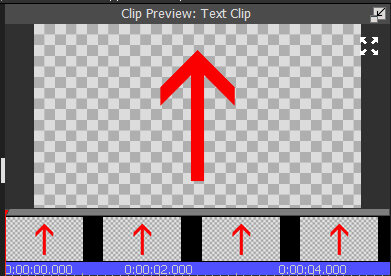
Place on the overlay track with the main image below it on Track 1. In fact this arrow may be a bit big at 120 and too wide so use Scale to reduce it to a suitable size. Presumably it will start very short and possibly small.
Now use position so the end starts in the correct place and set keyframe 1 with the cursor at the start of the clip. This is the starting length (scale) and position for the arrow. Like this...
M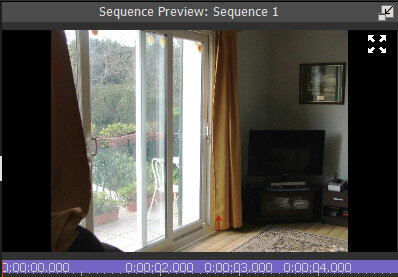
Move the effects cursor to the right. (end of the clip) and scale the arrow up vertically until it about the correct length and Position it so it starts correctly and fits where you want it to. You may have to reduce the width a bit with Scale as this alters during the scaling up. Check the appearance and position at the end of the clip and when it looks OK set the second keyframe....
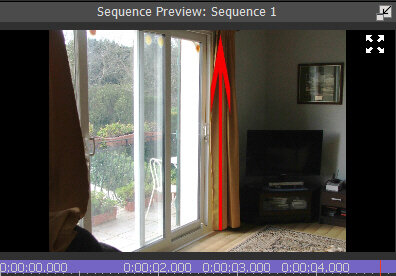
This is the idea. A lot depends on the image chosen for the arrow....A simple line might actually be better as you can keep the width from expanding as it scales up. Anyway.......(I haven't stopped it at the end)
ss.mp4
For a vertical line use a Capital i in Arial set at font size 100. Keep the width stable using the horizontal scale. The barbs on an arrow will not be there to present a problem. For a horizontal line just rotate the capital i. Experiment a bit.
Nat