Hi St B
".......This works all perfectly until the other day when I started to do some “cropping” on the top levels.
I noticed that that in the “black area” of the cropping, the lower level tracks will shine through and become visible instead of the black cropped area staying solid black...."
You are suggesting that the "black area" of the cropping is expected to stay black. Is this what you are wanting to get?
Under normal working..and its one way to get a picture in Picture......
With a single clip on the time line that has a Crop, the Clip Preview shows a chequerboard area but the Sequence Preview shows this as black......
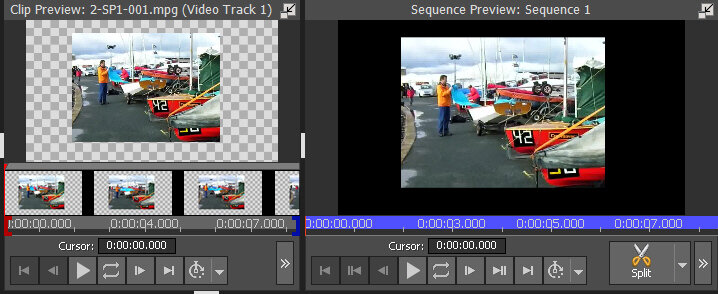
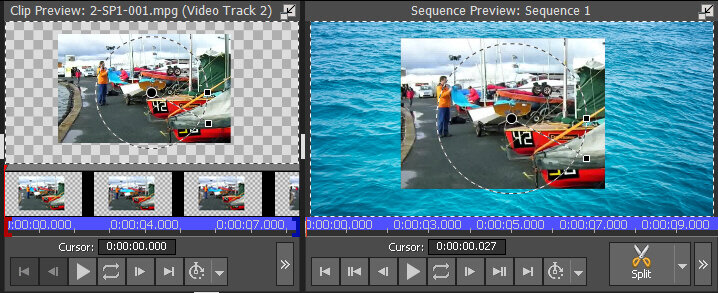
This is normal .....The area in fact is transparent. Put this on Track 2 and then put another clip beneath it and you will see what I mean. The clip on Track one is a seascape...
What you see however depends on which track you click.
If the focus is Track 2 the Clip Preview shows the Track 2 clip with the chequerboard pattern whilst the Sequence Preview shows that the area (previously black with no underlying clip) is indeed transparent and revealing the sea clip....(Both previews show the orientation markings related to the image on Track 2)
If the focus is Track 1 then the Clip Preview shows the Track 1 image only (the sea clip) and the Sequence Preview the Track 1 clip (the sea) in the cropped area. This is correct and is one way the effect is meant to be used.
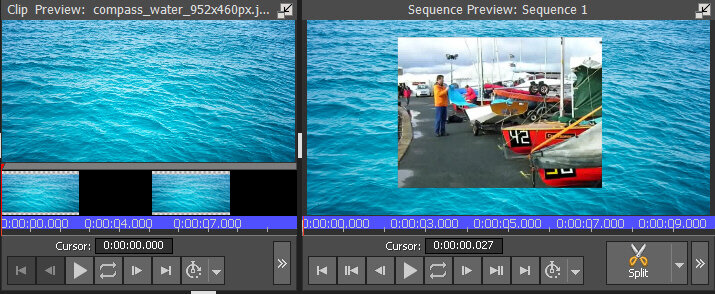
The black cropped area doesn't stay black and this is normal. It is not a problem or a bug.
"...The only way I could solve this problem was to add another track with black “blank” inserts below the cropped track to block the shine through effect......"
You have cropped the upper image correctly which will reveal part of the lower image as a result. Why do you then want it to go black and block the appearance of the lower image? Adding a black blank below this as you have done will achieve this? Are you just wanting a cropped image with a black surround?
If this is what you are after your method is correct and is the only way you will achieve this without placing the cropped image over nothing or placing it on Track 1 in which case the transparent area will be black and export as black as well.
Nat
