Hi
If you drag/drop clips to the arrowed zone.......
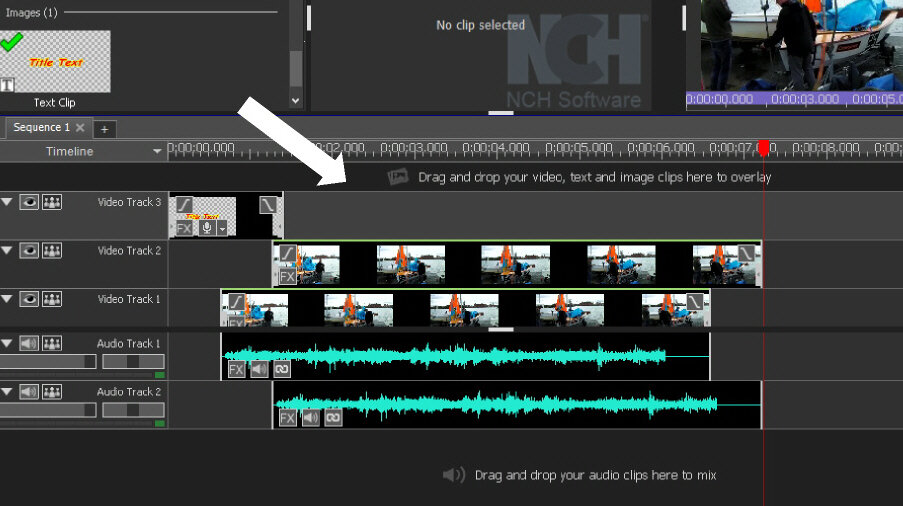
....they will create a new track. In the example here there are already 3 video tracks so any new clips added to the indicated zone will be placed on Video Track 4. Any linked audio will show on a new Audio Track. All audio will mix when played unless the specific audio is muted. Note that at the bottom of the sequence region there is a similar drag and drop audio zone for unlinked audio clips.
Depending of whether there is sufficient space available or you have too many tracks in use,you may not immediately see the new track but you can scroll them using the bars at the extreme right of the sequence area. Tracks can also be reduced in height by clicking the triangle at the extreme left. If you want more space for tracks you can also grab the short white bar under the preview area and drag it upwards. This reduces the height of the preview region. It won't make the TNs on the tracks larger however. With a bit of adjustment it is possible to see up to 15 tracks in total......but they will be very narrow! Some clips/images such as text and pngs automatically get placed on an overlay track. Note that clips on overlay tracks obscure clips on lower tracks. By clicking (selecting) a clip/image in the respective bin (top left) you get the choice of placing it in a variety of positions.
Nat
