Hi
You can monitor the position of the keyframe initially as it coincides with the cursor position under the Clip Preview window. As you move the effects cursor line in the graph side you will see the Clip Preview cursor move in sympathy with it. The positional value of the cursor will appear below the clip preview... (here it is 0:00:03.945)
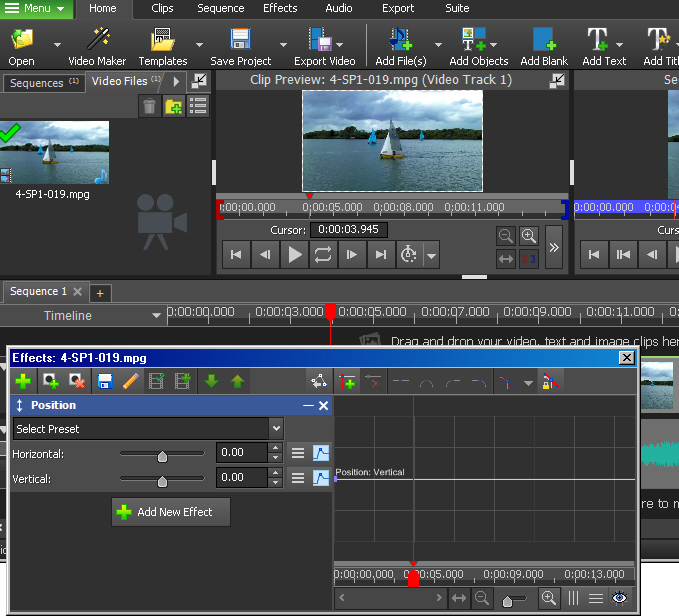
After setting the effect value (or moving the Position rectangle) keyframes for the values are automatically added.
Moving the effect cursor along you can reset the parameter when a new keyframe is generated.
NOW..You want to move one of the previous markers. As you know you can drag it to a new visual position on the graph but you can also enter a new precise time value into the box under the Clip preview pane. The cursor line will move to that position both in the graph and also in Clip Preview. You can now grab the keyframe marker (it will turn orange) and move it to the cursor line where it will jump to the red line. The parameter value can then be altered.
The Option 2 you mention is not for adjusting the Position horizontally of the keyframe marker it is for adjusting the value of the keyframe parameter, hence the mention of adjust the value of the parameter using its check-box, slider, or numerical input control. which I stated above. VP will set the cursor to the exact time position you enter but you have to adjust the marker manually vertically or enter values.
