Hi
VP can't merge projects i.e. load a second vpj file on top of an existing one, at least not in the normal sense. You can save your work as an export and load it back as a normal video file, but that defeats the object of having the component files as separate items. As far as I know you can't combine the vpj files either.
However if you have a project set up you can save it as a template. This is a vpj file which VP can load back to add to an existing project. The template however must contain a space or spaces called Placeholder clips. Click Add Objects tab to load them. You can also reload a placeholder from the clip bin. By clicking the down arrow next to the Template tab you can save your template..(i.e. your project.) Here is the project with three Placeholders between two clips.. (If audio is involved then you should also have an audio Placeholder. This is saved as a Template and will be found in the Template folder...
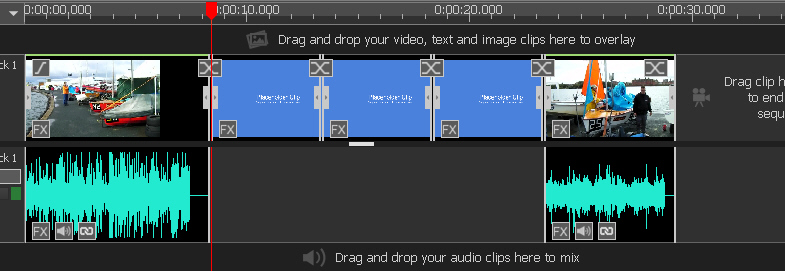
Now you can clear VP and start your second project.
The caveat is that the number of Placeholders in the template should match the number and position of clips in your new project For this SIMPLE example there are three placeholders. So you will need to know in advance. :unsure: OK it's clumsy However this is the principle.
The new project in this example consists of two clips (a cat and a jpg image.......
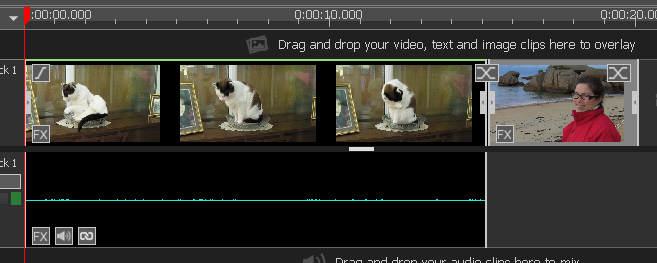
You can now click the Template tab, Select and Apply your Template
The current project (Cat and Image) are incorporated into the Placeholders in the template. The third Placeholder in this case remains empty...
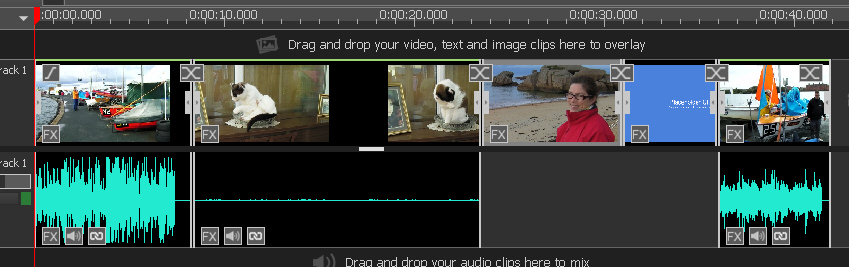
The result is that your first project (template with suitable placeholders) has been merged with your current project (the two clips) to become a new current project. This is a simple example but hopefully explains the principle.
More complex merges can be done using placeholders on different tracks and interspersed in the first project depending where you want to merge stuff. This can get complicated and give unexpected results but worth playing with.
Nat