Hi
In the S/T editor you will see your clip on the right. As you write the S/T text, the area in the clip where it will appear will brighten and you will see red START and a blue STOP markers. Your S/T will appear between these points in time. These can be dragged to position/extend/shorten the time the S/T is present.
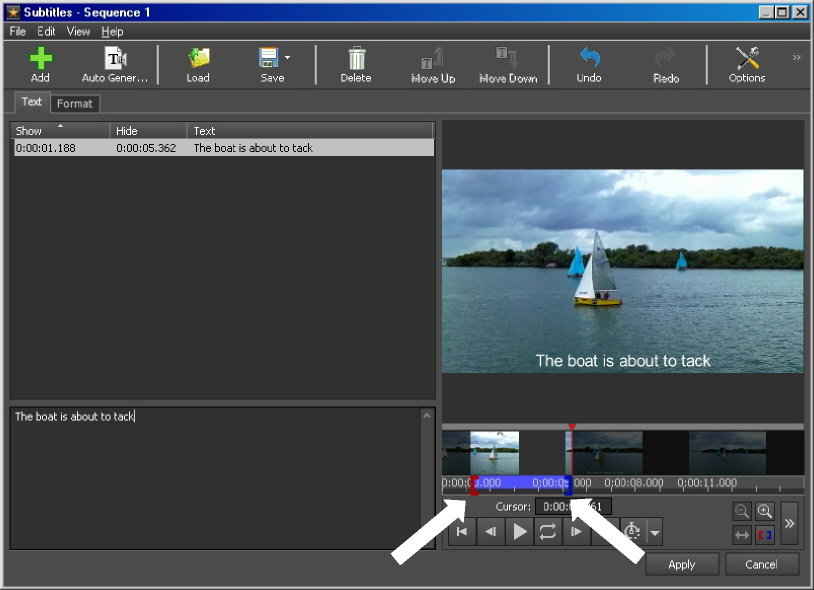
If you now click the Add (Green cross) your S/T will be listed in the editor with the Start and Stop times and you can now start another S/T If, however you start a new S/T without moving the markers, the new S/T will appear in the same place and overlap the old S/T
Once you have clicked the Green + in the editor the S/T is saved to the timeline and will appear at the designated place when the sequence is previewed.
In effect S/T appear on the timeline as you create them. You can also save them as an SSA or SRT file that can be loaded back.
Nat