Hi
Just to reinforce Borate's post above.... Any CLIP that you have not already shortened cannot be made longer except by altering its speed. If it has been shortened then it can be re-extended by dragging out the end of the clip to the limit of its original length.
IMAGES, on the other hand have no fixed duration and will appear on the timeline with the default duration set up in Options. This means that they can be manually extended to virtually any length by simply dragging the ends out on the timeline, or changing the duration shown in Storyboard mode, or changing the duration from the right clip menu when on the timeline. Obviously this is the easiest way to go if you have added in some audio and you want the timeline to match the new audio length.....Deal with still images.
eg.
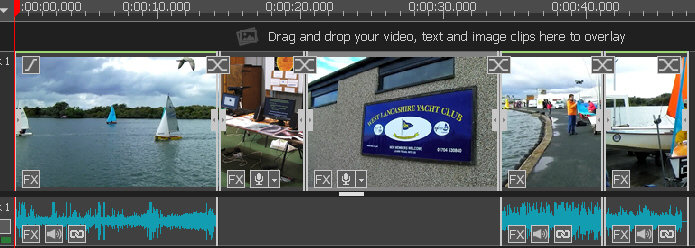
Original timeline with clips and images. The images don't have audio under them in this example, but the principal remains the same if there was a separate unlinked audio track...
Some new audio is now dropped in under the images. (but it could be inserted anywhere.)...Depending on exactly where you add it, it will push the timeline to the right..In the example below it was dropped at the start of the first image...at the cursor..... The timeline from this point has been pushed to the right.....
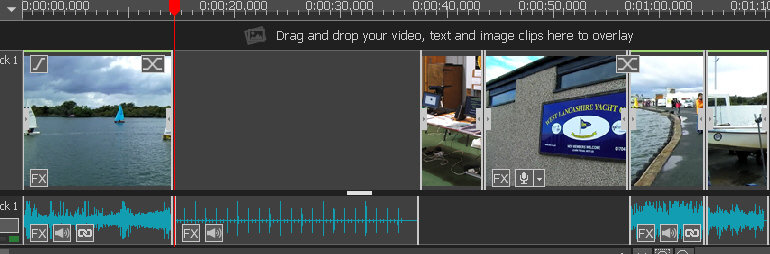
Note that LINKED audio on the right remains linked and will just be pushed along, along with the associated clips.. Using the white handle on the image, The left hand end of the image can now be dragged to the left to fill up the space created when the audio was added...
 .
Indeed, the two image clips in this example can be adjusted individually to completely fill up any gaps created so as to leave a complete (but extended) audio track...
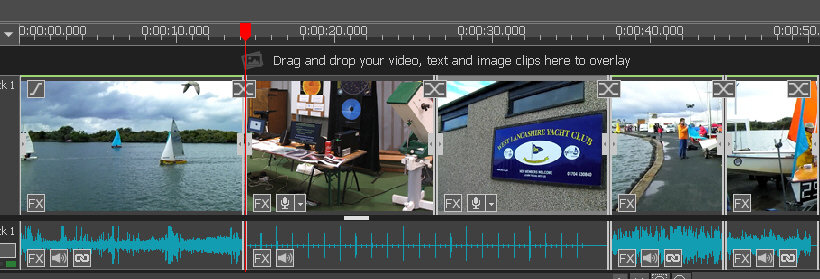
Does this help at all??
Nat