Hi
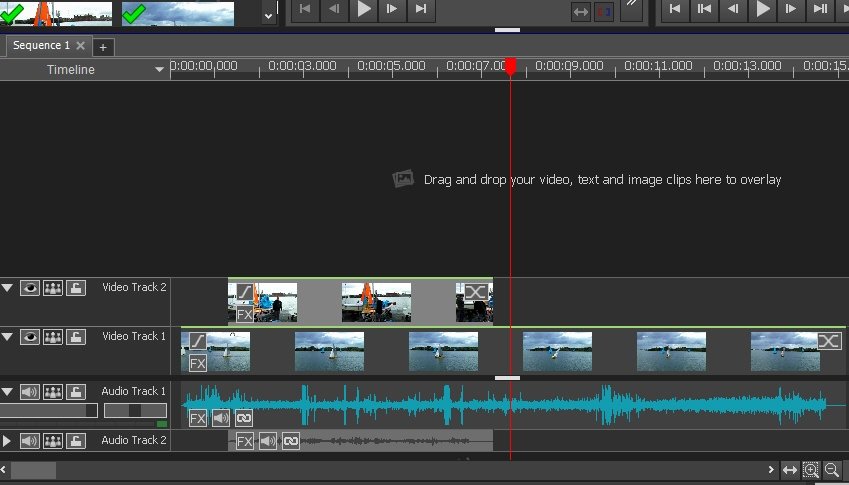
VP 1.77 This how it should look......
Add 1 clip to Video Track 1..........
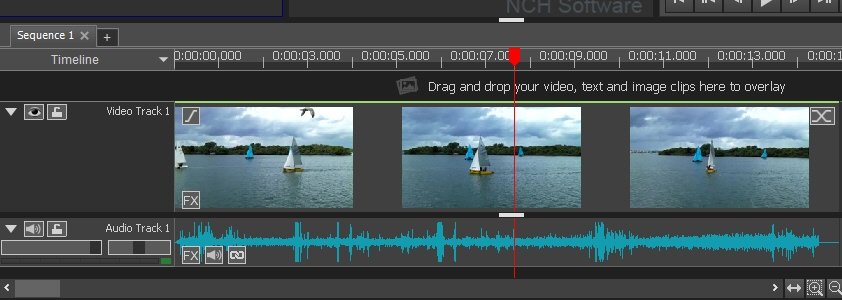
The thumbnails on the track are of reasonable size. You can drag the white bar (seen above the red cursor line) up or down to reduce or expand the thumbnails. This actually is at the expense of the preview screen size which that control is adjusting. You can also click the down/up triangle at the extreme left end of the track to reduce or enlarge the Track.
Add a second clip this time to Video Track 2 (The overlay track)....
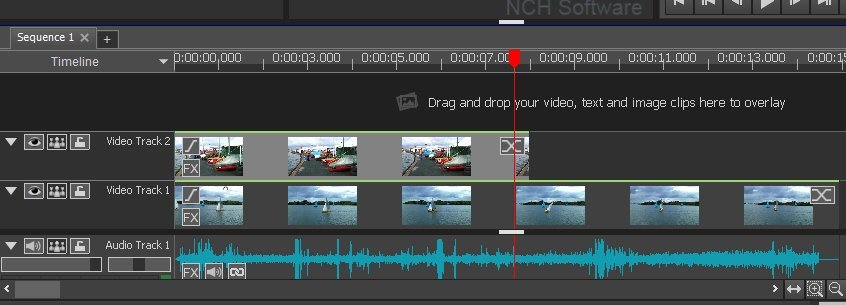
The thumbnails will reduce in size as shown. This is normal and the size is the maximum you will have with more than 1 track in use. However moving the white bar up will not increase their size above this.(but it will make the preview smaller.) The result is that the Drag and Drop area will become higher at the expense of the preview screen/s Note that clicking the white triangle at the left will shrink the track down even smaller .....So check you haven't done this.
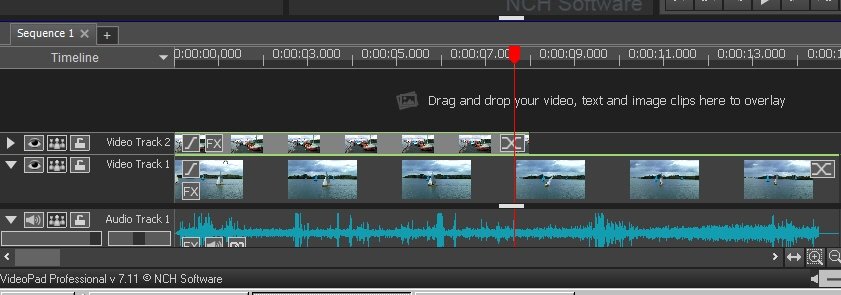
.OK...Put this back to "full" size and add a further clip to Video Track 3 (Overlay track)........
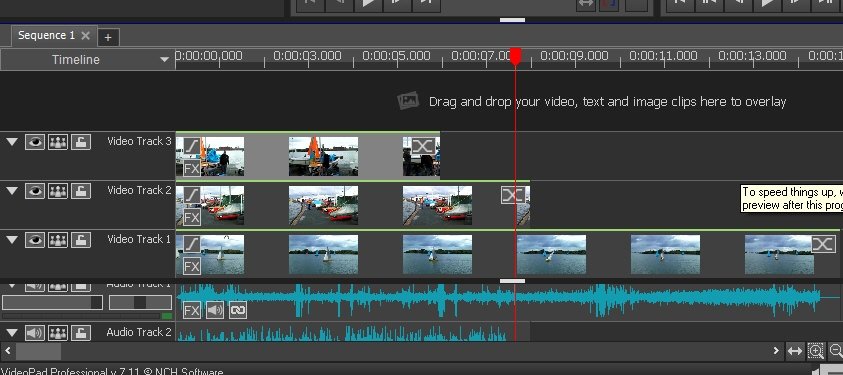
The thumbnails will now remain the same size (unless the track is collapsed). Initially Video Track 1 may not be visible but dragging up the white bar will bring it into view. At the Screen resolution I have set on my PC one can have a maximum of 5 tracks visible "full" size without having to scroll up the track area using the slider at the right. If your PC is set with a higher resolution you may see more (but relatively smaller)
I suggest that you might try to slide the white bar up or down since with two tracks in use and a reduced preview screen size (as the slider is too high) the Drag and drop area can be quite large....
Hope this helps.
Nat
