Hi
You have a nice tribute here but it is slightly complex in the way you have arranged it. 🙂
All your texts ought be placed on the upper tracks so they overlay the Video clips correctly. It is then much easier to adjust their length. Some that you have placed on Video Track 1 (like Text(7) are effectively hidden by the coincident clip on the upper overlay track. You can correct this by moving it to an upper track like Video Track 4. However, as it has a black background it will now hide the Video clip below it! To correct this slect Text Clip (7) from the image bin and change the text background......the easiest way is to set the Background Opacity to 0...
Provided you don't need to overlap (overlay) them, try to keep all the video clips as far as possible on the same track. Create gaps if you need them by positioning them with the Alt key pressed. It makes editing much easier. Do the same for the text clips/images. keeping these on the upper tracks. (preferably all on Video track 2 You can then adjust them to fit the length of the video clips beneath.
In general, as you have set them up things on the whole aren't too bad. Note however that the text scrolling feature in the previous VP version was faulty. In the latest (7.10) it has been corrected.
The main problem you have is the Text formatting, font size and line length in the editor..
Vertical scrolling text like Text(7) should be adjusted to fit the Sequence preview screen which is not the width of the text editor window.. Remember that the text width seen in the editor depends on the font size...bigger font,longer line but less on the preview screen. Although the text line you enter may fit the editor it may overflow the screen if the font is too large or the line is too long. use the Sequence preview to monitor what the result looks like..WYSIWYG....
Text Clip (7) for example is even longer than the editor window!...
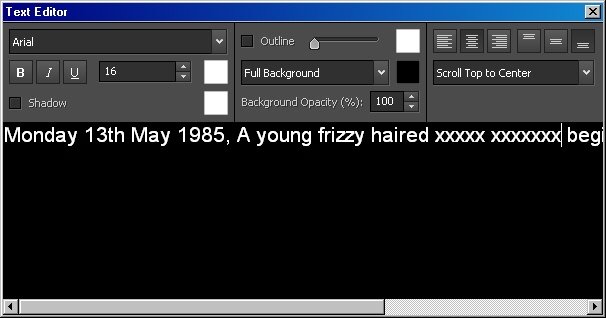
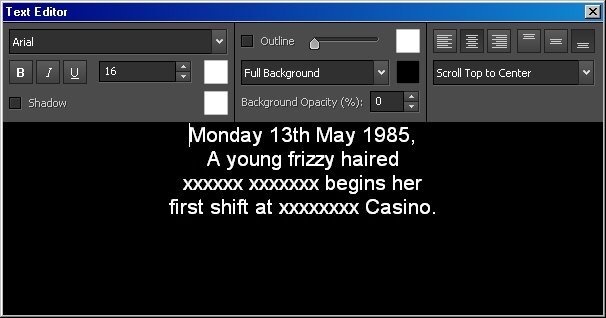
This would scroll horizontally with no problem but to correctly scroll vertically as you require it will need to be rearranged in the editor as follows to appear correctly in the preview....(Note the central justification setting)
(I have used xxxs to blank out names etc.)
As another example Text Clip (9) also needs to be placed on a higher track with the background made transparent. The vertically scrolling text again will need to be spread over two or more lines
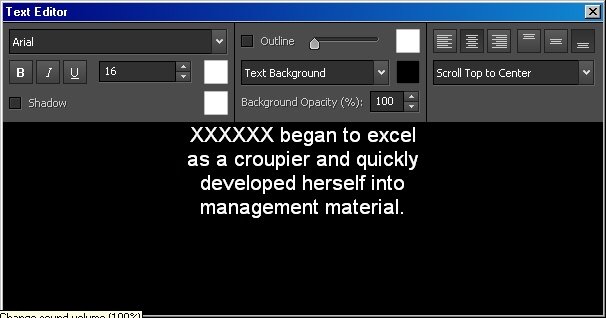
Proceed along the timeline checking and correcting each text in a similar way as above. They are mostly formatting problems like these two examples. In each case use the red cursor line to "scrub" along the timeline to check that the text starts and finishes where you want it to and scrolls the way you want it to. If it overlaps a following clip on the lower track then either move the clip along the track (using Alt if necessary) or shorten the duration of the text clip by dragging the right hand end back a little.
It will take a little while to correct it all but you should get there OK.
Good Luck
Nat


