Hi
Borate has described a slightly more advanced method of video creation where separate sections of the project are worked on and then temporarily stored as sequences. These are then later retrieved joined up before being exported .
As an aside, I personally think the term Sequence ought to refer to these stored sections of your work whilst the clips etc. you have on the various tracks ought to be referred to as the Timeline. There would then be a Clip Preview window and a Timeline Preview window. This would avoid the confusion that sometimes crops up with the terminology.
However, I feel you may be a more basic user (but please excuse me if you are not) and so I assume you have a series of clips or images from your camera that you have loaded to VP and you have placed them on one, or more of the Video tracks and now, after suitable editing..(trimming/adding effects/titles and transitions, you wish to export them as a finished video.
This video could be a playable file on your PC or a video burnt onto a suitable DVD disc.
For a video on your PC....
Left click the tab on the toolbar Export Video and then select Video File
In the following Export Video screen Enter a name for your video...Note or change the destination folder, otherwise leave the entries as shown here... There are many choices and variables here but these should ensure that you will have a reasonable result.....
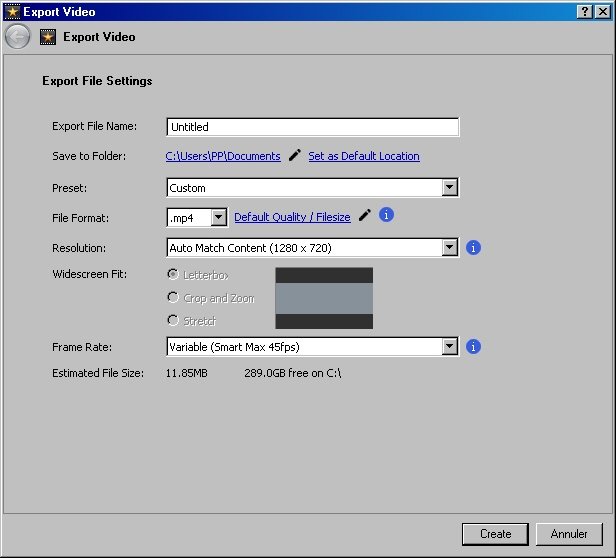
Click create.
The Export Queue window will now show a progress bar as your Video file is created...
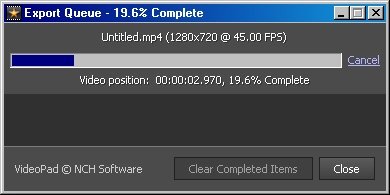
When complete, your video will be found in the designated folder and if double clicked should play on you PC if you have a suitable player like VLC.
If you want to save your Video to a standard disc...DVD-R or DVD-RW then.......
Left click the tab on the toolbar Export Video and then select DVD Movie Disc
Insert a suitable DVD disc into your Disc Drive.
Enter name for your disc or leave it untitled and for Burner select the name of your Disc drive in the list
Choose PAL or NTSC depending on your location (there is help prompt). Select aspect ratio (16:9)
Click Create
Select Verify but skip making a menu and
Click Burn
If all is OK your PC will burn a playable Video to the disc.
Note: It's a good idea to Save your project before any export and for discs it's advisable to use a re-writable disc. DVD-RW. That way you can always come back, load up the vpj fileand try again if things go wrong.
Nat

