Hi
With all your clips assembled in the sequence line, grab the blue heart shaped blob at the top of the red cursor bar and drag it along to the point where you want to start the removal. You could also play the sequence to this point or click the timeline bar along the top of the sequence which will move the red cursor line to that point.
Under the right hand preview screen you will see a button with scissors and just to the right of this a small down arrow. Click the arrow to choose which tracks you want to cut. (You may not want to cut all the tracks). With simple videos though just click the scissors button.
This will cut all the tracks at the red line.
Now drag the cursor line along the sequence to the end of the section you want to remove and repeat the procedure. i.e. Click the scissor button.Note:
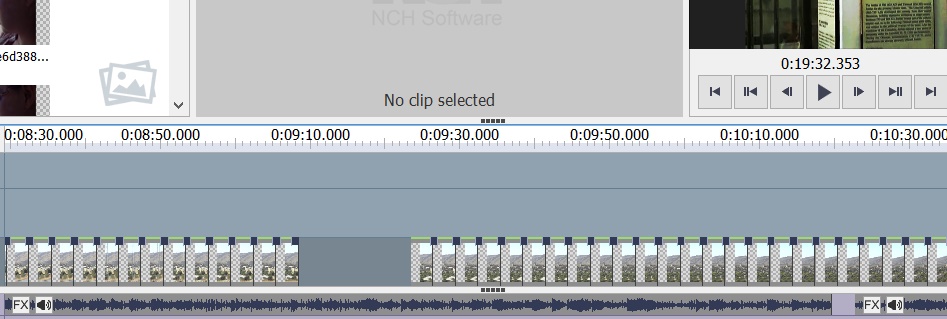
To remove the section you have isolated, right click on it. It will turn blue (you will have selected it) and a menu will appear. Choose to "Delete selected clips"
Note: If there is a join between clips in the original sequence that falls between the points you selected to cut, you will have two bits to remove in this way.
You can select both bits at the same time if you want to save time by left clicking them both in succession whilst holding down the Shift key and then selecting the menu option to "Delete selected clips".
The ends of the sequence that remain (if on the main sequence line) will now jump togther after the section is deleted.
In some circumstances if video is on the other tracks for example you will be left with a gap. This can be closed by clicking it and selecting"Close gap" from the options presented.
Hope this helps
Nat